
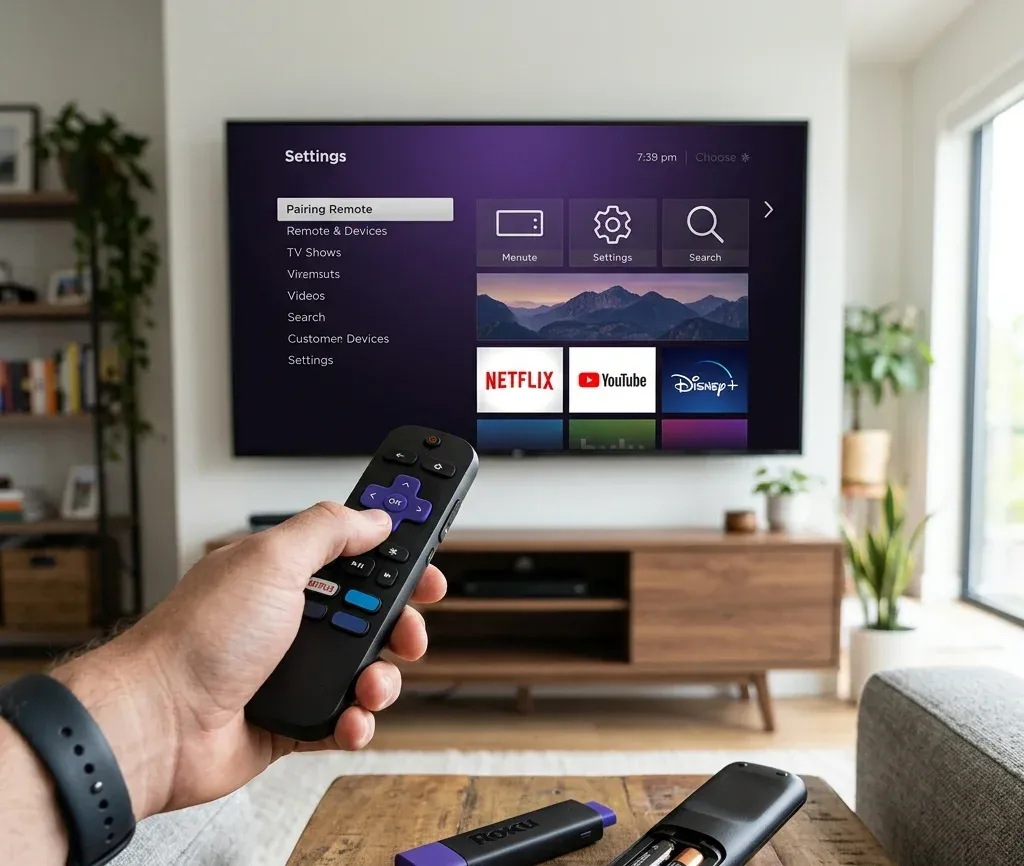
Not all Roku TV have built-in Bluetooth audio output. Here’s how to find out:
- On your TV, go to Settings > Remotes & Devices.
- Look for a Speaker or Audio devices option.
- If you see it, your TV supports direct Bluetooth connections and you can pair a speaker straight from this menu.
Only Roku Plus Series TVs support connecting a Bluetooth speaker directly. If you have a different Roku TV system, you’ll need to add Bluetooth capability using Roku wireless speakers or a Roku TV Wireless Soundbar — direct Bluetooth speaker pairing isn’t otherwise supported on the TV itself.
Method 1: Direct Bluetooth Connection (Roku Plus Series TVs)
If your TV supports it directly:
- Put your Bluetooth speaker into pairing mode (check your speaker’s manual — usually a button press-and-hold).
- On the Roku TV, go to Settings > Remotes & Devices > Audio devices.
- Select the option to add or pair a new Bluetooth speaker.
- Choose your speaker from the list of available devices once it appears.
- Once connected, it should remain paired — Roku devices save pairing information even when powered off, so you typically only need to do this once.
Method 2: Using Roku Wireless Speakers or a Wireless Soundbar (Most Roku TVs)
If your Roku TV doesn’t support direct Bluetooth speaker pairing, you can still stream Bluetooth audio by first connecting Roku’s own wireless speakers or a Roku TV Wireless Soundbar to your TV — this effectively adds Bluetooth capability to TVs that don’t have it built in.
Step 1: Pair the Roku wireless speakers or soundbar to your TV
- Plug the wireless speakers or soundbar into power.
- Go to Settings > Remotes & Devices > Set up a new device > Wireless speakers.
- Follow the on-screen pairing instructions — this uses a discovery process to establish a secure wireless connection.
- If pairing doesn’t start automatically, press and hold Home on your Roku remote for 5 seconds, pointing it directly at the TV screen, to manually enter pairing mode.
Step 2: Once paired, stream Bluetooth audio from another device After your Roku wireless speakers or soundbar is connected to the TV, you can then pair a phone, tablet, or computer to that speaker system over Bluetooth to play music or podcasts — even with the TV screen off.
Note: once Roku wireless speakers are connected to your TV, the TV’s built-in speakers are automatically disabled, and audio routes through the wireless speakers instead.
Method 3: Using Your Phone as a Bridge (No Compatible Hardware)
If your Roku TV doesn’t support Bluetooth at all and you don’t have Roku wireless speakers or a soundbar, there’s a workaround using the Roku mobile app’s Private Listening feature:
- Connect your Bluetooth speaker to your smartphone first.
- Connect your smartphone to the same Wi-Fi network as your Roku TV.
- Open the Roku app on your phone (available on the App Store or Google Play).
- Tap the Devices tab and select your Roku TV from the list.
- Tap the headphone icon in the app and confirm when prompted with “Private Listening Activated.”
- Once the headphone icon shows a green dot, your Roku TV’s audio is routing through your phone — and since your phone is connected to the Bluetooth speaker, the sound plays through that speaker.
This method works on essentially any Roku TV, since it doesn’t rely on the TV itself having Bluetooth — it uses your phone as the audio bridge instead.
Troubleshooting Common Issues
- Bluetooth won’t pair: make sure Bluetooth is enabled on your device and that it’s not in airplane mode. Some devices need Bluetooth toggled off and back on to trigger a successful pairing.
- Speaker connected but no sound: confirm the correct audio output is selected in your TV’s audio settings, and check that the speaker isn’t muted or set to a different input.
- Wireless speakers won’t enter pairing mode: confirm you’re using your original Roku remote (not the mobile app) and pointing it directly at the screen; try fresh batteries in the remote if it’s unresponsive.
- Pairing keeps failing: verify your Roku device has an active internet connection — each speaker needs to receive a unique update during pairing, so an internet outage will interrupt the process.
- Roku wireless speakers won’t pair while a soundbar is connected: these two device types can’t be paired to the TV simultaneously — a Roku Streambar, Streambar Pro, or Smart Soundbar already connected will block wireless speaker pairing (though the soundbar itself can be set up as rear surround speakers instead).
Conclusion
The fastest path depends on your TV: check Settings > Remotes & Devices for an Audio devices/Speaker option first — if it’s there, you can pair a Bluetooth speaker directly. If not, Roku wireless speakers or a wireless soundbar add that capability, or you can use the Roku app’s Private Listening feature to route audio through your phone to any Bluetooth speaker, regardless of what your TV supports natively.