
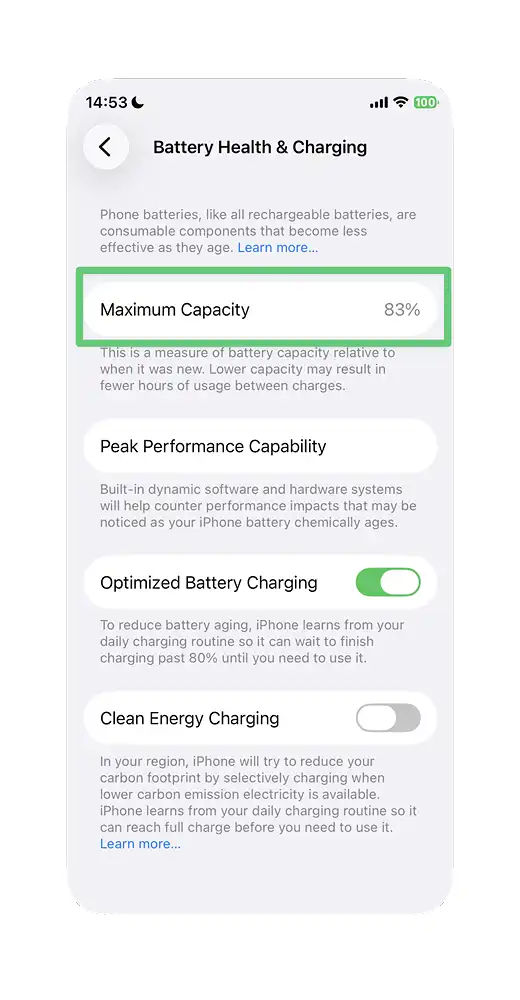
Every iPhone battery is a lithium-ion battery, and like all lithium-ion batteries, it gradually loses its ability to hold a full charge over time. Checking battery health lets you catch that decline early and decide whether it’s time for a replacement — before it turns into unexpected shutdowns or a phone that barely makes it through the day. This guide covers how to check it, what the numbers actually mean, and how to slow the decline going forward.
How to Check Battery Health on iPhone
The path differs slightly depending on your model:
- Settings → Battery → Battery Health on an iPhone 15 or later.
- iPhone 14 and earlier: Settings → Battery → Battery Health & Charging.
Once there, you’ll see your Maximum Capacity displayed as a percentage at the top of the screen — this is the single most useful number on this screen and your most reliable built-in indicator of real-world battery degradation.
What the Numbers Actually Mean
- Maximum Capacity — shows how much energy your battery can currently store compared to when it was new. A reading of 87%, for example, means the battery holds 87% of its original capacity.
- Peak Performance Capability — tells you whether iOS has applied performance throttling after an unexpected shutdown caused by battery degradation. If you see a message that “Performance management has been applied,” iOS is intentionally slowing the processor down to prevent further unexpected shutdowns.
What Counts as Healthy
- 85% or above — generally performing well for daily use; no action needed.
- 80–85% — still functional for most users, but you may start noticing shorter battery life.
- Below 80% — Apple’s threshold for recommending a battery replacement. This is also generally the cutoff for free or discounted battery service under AppleCare+, if you have it.
That said, the percentage alone shouldn’t be the only thing driving your decision. If your phone comfortably lasts through a full day of your typical use and isn’t shutting down unexpectedly, even a battery in the low-to-mid 80s may not need replacing yet. Conversely, if you’re seeing real slowdowns or shutdowns, that’s worth acting on regardless of the exact number.
A Note on Limitations
Apple’s built-in Battery Health screen is accurate and sufficient for the vast majority of users, but it does have some limits: it doesn’t display raw capacity in mAh, voltage curves, or charge cycle count directly in the main screen, and some users have reported that certain historical usage details are less visible after recent iOS updates. For most people this doesn’t matter — the Maximum Capacity percentage is the number that actually drives Apple’s own service recommendations. If you want deeper technical detail (cycle count, raw mAh values, long-term degradation tracking across multiple devices), third-party diagnostic tools exist, but they’re aimed at power users rather than something the average person needs.
How to Protect Your Battery Going Forward
A few built-in features and habits help slow battery degradation over time:
- Optimized Battery Charging — uses on-device machine learning to learn your daily charging routine and delays charging past 80% until shortly before you typically unplug, reducing time spent at a full charge (which accelerates wear). It generally needs about two weeks of consistent charging patterns to fully activate.
- Charge Limit (iPhone 15 and later) — lets you manually set a maximum charge limit between 80% and 100% in 5% increments, giving you direct control over how full the battery charges.
- Avoid extreme temperatures — heat is one of the biggest accelerants of battery wear; avoid leaving your phone in direct sun or a hot car.
- Long-term storage — if you’re storing an iPhone for an extended period, charge it to around 50%, power it off, and keep it somewhere cool. Storing at 0% risks deep discharge, which can leave the battery unable to hold a charge at all. If storing long-term, recharge to 50% roughly every six months.
When to Consider Replacement
Beyond the raw percentage, consider a battery replacement if you’re experiencing:
- Unexpected shutdowns, especially when the battery indicator still shows meaningful charge remaining
- Noticeably reduced screen-on time compared to when the phone was new
- On the Battery Health screen, a notification stating that “Performance management has been applied”
- Maximum Capacity below 80%, particularly if it’s paired with any of the symptoms above
Conclusion
It takes less than a minute to check the condition of your iPhone’s battery: Look at Maximum Capacity after selecting Settings → Battery → Battery Health (or Battery Health & Charging on earlier devices).. Above 85% is healthy, below 80% is Apple’s threshold for replacement — but real-world symptoms like unexpected shutdowns or noticeably shorter battery life matter just as much as the number itself. Using Optimized Battery Charging or setting a manual charge limit are the simplest ways to slow degradation and extend the time before you need a replacement at all.