
File compression software has become an important tool for managing digital files. It reduces file sizes, combines multiple files into archives, and makes large amounts of data easier to store and share.
In 2026, users have many compression programs to choose from. Some tools are completely free, while others offer premium features for professional users.
The right choice depends on compression performance, supported formats, security, speed, ease of use, and your operating system.
What Is File Compression Software?
File compression software reduces the amount of storage space required by files. It does this by using algorithms that represent data more efficiently.
A compression program can also place several files and folders inside a single archive. This makes it easier to transfer or organize a large collection of files.
Popular archive formats include ZIP, 7Z, RAR, TAR, GZIP, and several others.
Why Use File Compression Software?
One of the most significant advantages is the reduction in storage space required. Compressed archives can take up considerably less space than the original collection of files, depending on the type of data.
Compression is also useful when sending files online. A group of documents can be placed into one archive instead of uploading each file separately.
Another benefit is organization. You can combine project files, photos, documents, or backups into a single archive.
Many compression programs also provide encryption and password-protection features. These choices can help keep critical archives safe from unauthorized access.
Best File Compression Software in 2026
1. 7-Zip
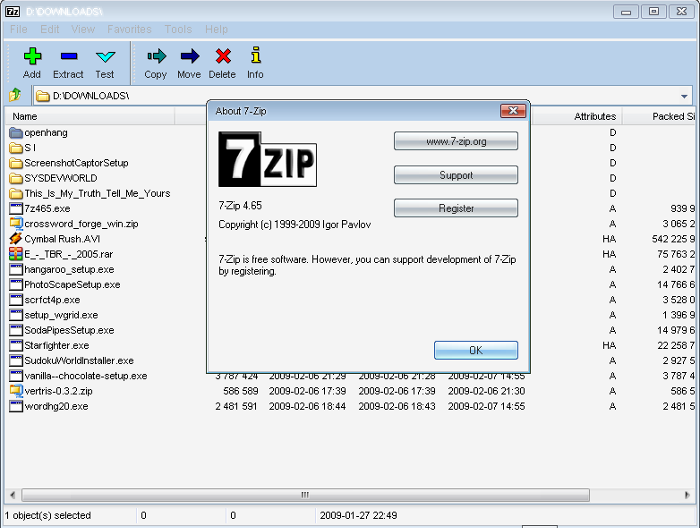
7-Zip remains one of the strongest choices for users who want free and powerful compression software.
The program is open-source and does not require users to purchase a license. The latest listed 2026 release is 7-Zip 26.02, released on June 25, 2026.
Its native 7z format uses LZMA and LZMA2 compression technologies. These can provide a high compression ratio, particularly when reducing suitable types of files.
7-Zip can create archives in formats including 7z, ZIP, TAR, GZIP, BZIP2, XZ, and WIM. It can also extract many additional archive and container formats.
Security is another advantage.7-Zip offers AES-256 encryption for both 7z and ZIP archives.
The interface is simple rather than modern, but this does not affect its core compression capabilities.
Best for: Free compression, large archives, backups, and advanced Windows users.
2. WinRAR
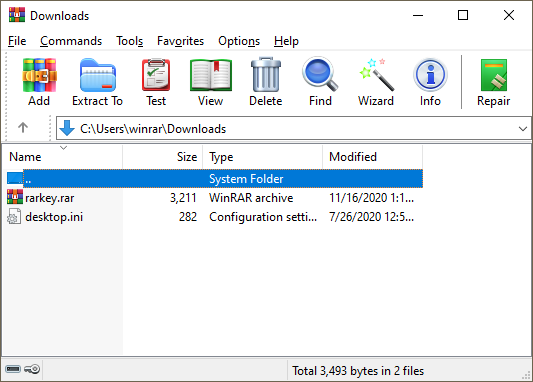
WinRAR is one of the most recognizable archive-management programs. It is particularly well known for its RAR format.
The software can create and extract compressed archives while providing additional tools for managing large files.
WinRAR is handy if you receive RAR archives on a regular basis or need archive management tools.
It also supports password protection and archive splitting, which can be useful when working with large collections of data.
Best for: RAR archives, advanced users, and professional file management.
3. PeaZip
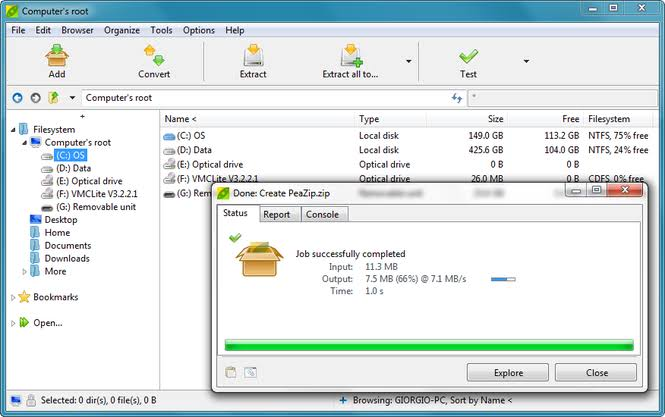
PeaZip is another popular open-source compression utility. It focuses on broad archive support and additional security features.
The software can handle many different archive formats, making it useful for users who frequently work with files created by different compression programs.
PeaZip also provides features for encryption, archive conversion, archive testing, and file management.
Its additional features make it an attractive alternative to simpler compression utilities.
Best for: Users who want broad format support and extra security tools.
4. WinZip
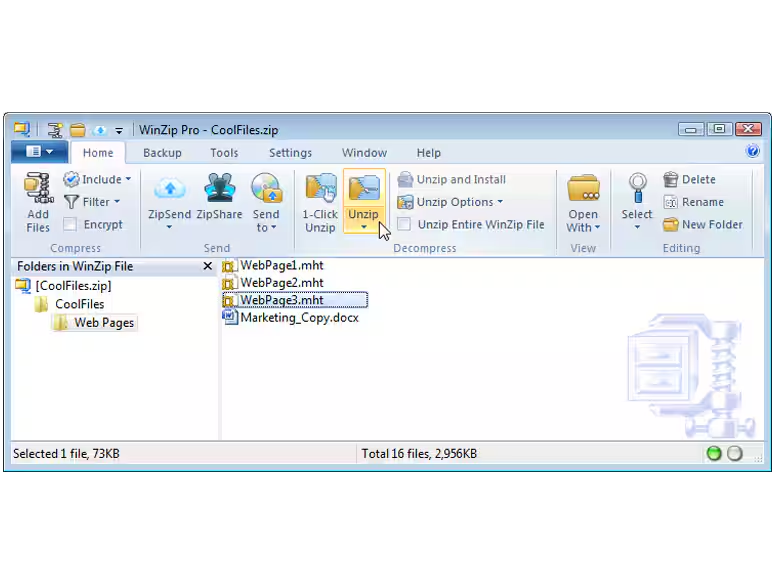
WinZip is a long-established commercial compression application. It focuses on ease of use and additional productivity features.
It can be useful for people who want more than basic file compression. Depending on the version and platform, users can access tools for file sharing, encryption, and integration with other services.
WinZip is particularly suitable for people who prefer a polished interface and guided features.
The main disadvantage is that many of its advanced features require a paid license.
Best for: Beginners, professionals, and users who prefer premium features.
5. Bandizip
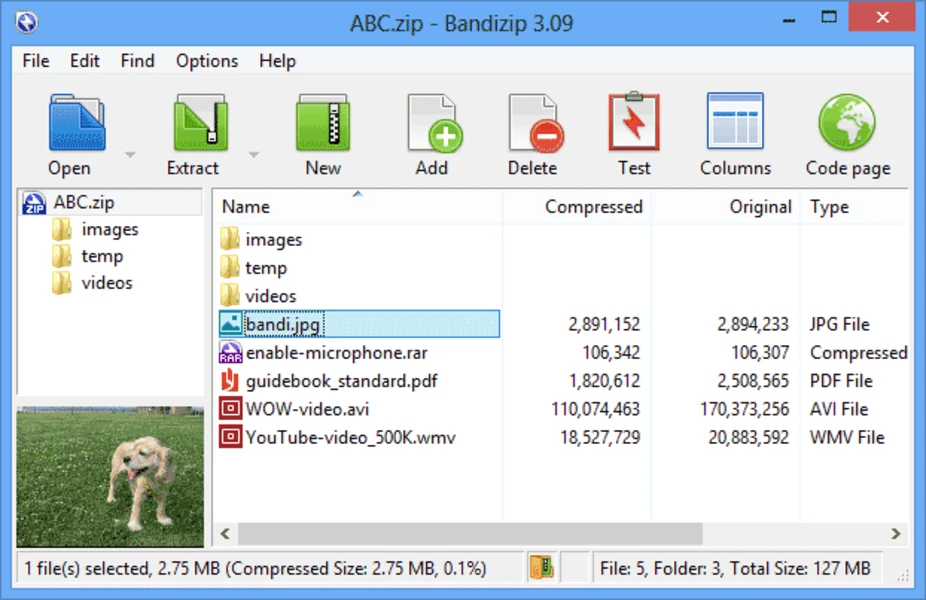
- Bandizip is known for its straightforward interface and fast archive operations.
- It supports numerous popular compression types and includes tools for building and extracting archives.
- Its clean workflow makes it convenient for everyday file compression tasks.
- Bandizip is worth considering if you want a balance between simplicity and useful archive-management features.
Best for: Everyday compression and users who prefer a simple interface.
6.
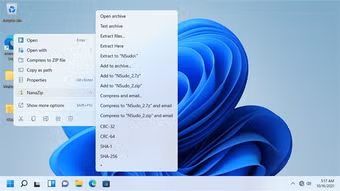
- NanaZip is a modern archive utility designed with Windows users in mind. It is based on technologies from the 7-Zip ecosystem while providing a more contemporary Windows experience.
- It can be attractive to users who like 7-Zip’s compression capabilities but want an interface that fits more naturally into newer versions of Windows.
- For Windows 11 users, NanaZip can be an interesting alternative to traditional archive managers.
Best for: Windows users who want a modern archive interface.
7-Zip vs WinRAR
- 7-Zip and WinRAR are two of the most commonly considered compression programs.
- 7-Zip is particularly attractive because it is free and open-source. Its 7z format is designed for high compression ratios, and it supports strong AES-256 encryption.
- WinRAR is a strong option when RAR archives are important to your workflow. It also offers tools aimed at advanced archive management.
- For users who mainly want free compression, 7-Zip is usually the simpler recommendation.
- For users who regularly work with RAR files and want WinRAR’s specialized features, WinRAR can be a better fit.
Which Compression Software Has the Best Compression?
There is no single compression program that produces the smallest possible file for every type of data.
- Text files, documents, source code, and some other data types can compress very differently from videos, JPEG images, and already-compressed files.
- 7-Zip’s 7z format is specifically designed for high compression using LZMA and LZMA2.
- For everyday use, choosing a program with the right format and compression settings is generally more important than focusing on one universal compression percentage.
Which Software Is Best for Large Files?
Large files and large collections benefit from software that supports archive splitting and reliable archive management.
- 7-Zip can create multi-volume archives, which allows a large archive to be divided into smaller pieces.
- WinRAR also provides archive-splitting features, making it useful when large files need to be transferred through systems with size limitations.
- Before splitting an archive, ensure that the recipient has software capable of joining and extracting the various components.
Best Compression Software for Security
Security is important when compressed archives contain private documents or business information.
- 7-Zip supports AES-256 encryption for both 7z and ZIP formats.
- PeaZip is another option for users who want additional security and archive-management capabilities.
- A strong password is essential when using encrypted archives. Avoid simple passwords that can be easily guessed.
Best Free File Compression Software
If you want a completely free option, 7-Zip is one of the strongest choices.
- It is open-source, lightweight, supports many formats, and provides high compression through its 7z format.
- PeaZip is another excellent free option, especially if you want additional archive-management features.
- For most everyday users, there is little reason to pay for compression software unless they specifically need premium features.
File Compression on Windows
Windows includes basic support for ZIP archives, which is sufficient for simple compression tasks.
- However, dedicated compression software can provide more formats, stronger compression options, encryption, archive splitting, and additional management features.
- For Windows users who frequently work with compressed files, installing a dedicated archive utility can make file management much easier.
File Compression on macOS and Linux
- Users on macOS and Linux also have several archive-management options.
- PeaZip is particularly useful for people who want a cross-platform solution. Other platform-specific utilities are also available depending on the formats and workflows being used.
- Before installing software, check whether the current version supports your operating system and preferred archive formats.
How to Compress Files
Start by selecting the files or folders you want to compress.
Right-click the selection and open your compression program. Choose the archive format you want to use.
If you want maximum compression, select a higher compression level. Keep in mind that higher compression can take more processing time.
For private information, enable encryption and create a strong password.
Finally, choose where you want to save the archive and start the compression process.
How to Extract Compressed Files
Extracting an archive is usually simple.
- Open the archive using your compression program and select the extraction option.
- Choose the destination folder and start the process. If the archive is password protected, you will need to enter the correct password.
- For split archives, keep all parts in the same folder before starting the extraction.
Does Compression Always Reduce File Size?
No. Compression does not always produce a significant reduction in size.
- Files such as JPEG images, MP4 videos, and many modern software packages are already heavily compressed.
- Trying to compress these files again may produce only a small reduction.
- Text documents, databases, logs, and uncompressed data can often benefit much more from compression.
How to Choose the Best File Compression Software
Start by considering the archive formats you need.
- If you mainly use ZIP and 7Z, 7-Zip can be an excellent choice. If RAR files are central to your workflow, WinRAR may be more convenient.
- Next, consider security. Users handling confidential information should choose software that supports strong encryption.
- Speed is also important if you frequently compress large amounts of data.
- Finally, consider the interface. Beginners may prefer a simple program, while advanced users may appreciate command-line tools and detailed compression settings.
Final Verdict
The best file compression software in 2026 depends on what you need.
- 7-Zip is the best overall choice for many users because it is free, open-source, lightweight, and capable of high compression. Its 2026 release also continues to support a wide range of archive formats and AES-256 encryption.
- WinRAR is a strong choice for users who frequently work with RAR archives.
- PeaZip is ideal for people who want broad format support and additional security features.
- WinZip is a good option for users who prefer a polished commercial application with additional productivity features.
- Bandizip is worth considering for users who value a straightforward and fast experience.
Overall, if you want a free and powerful compression solution, 7-Zip is the easiest recommendation for most Windows users in 2026.